A focused Windows desktop tool for scanned paperwork, built to accelerate finding, organising, converting and combining PDFs.
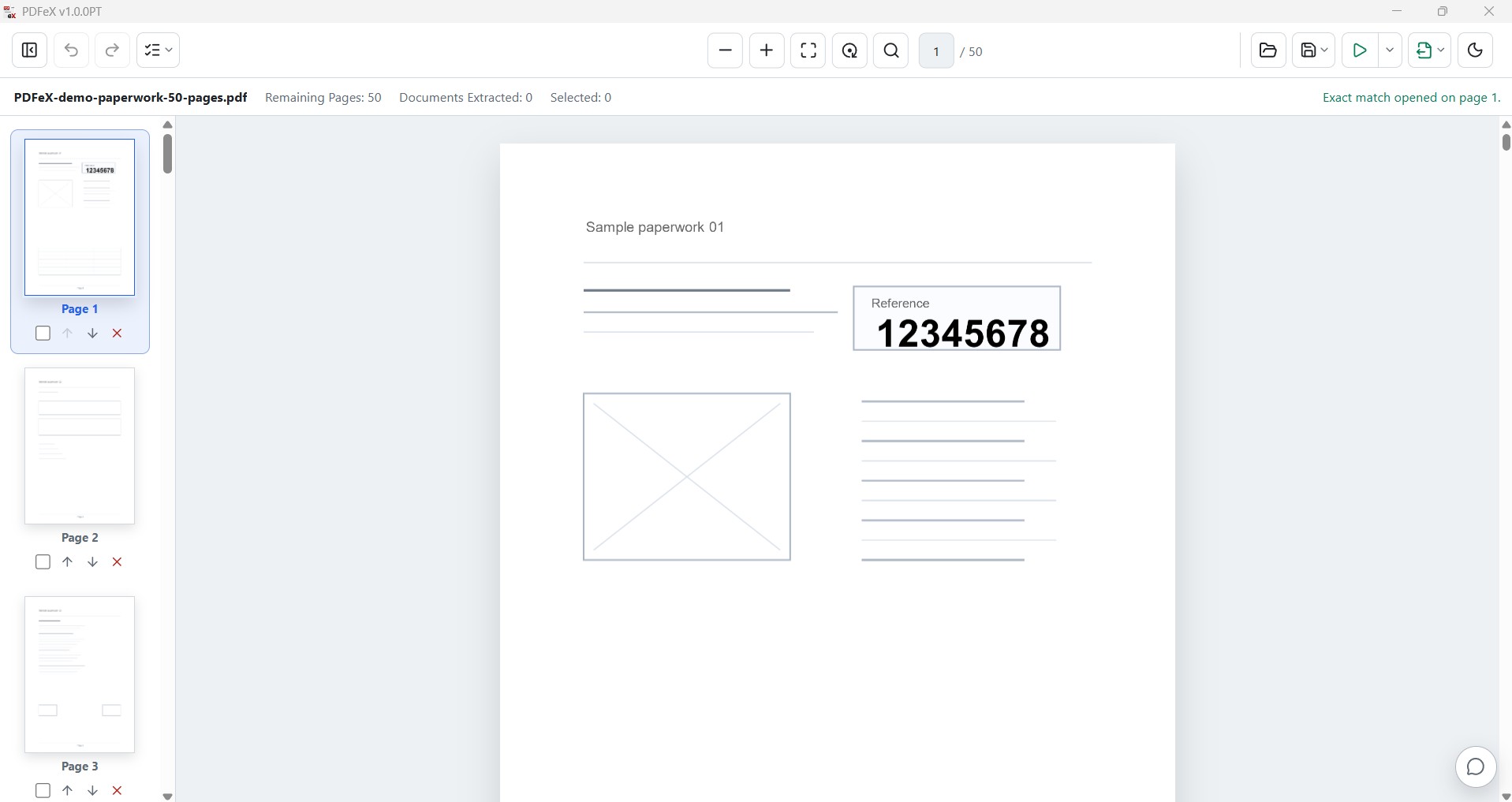
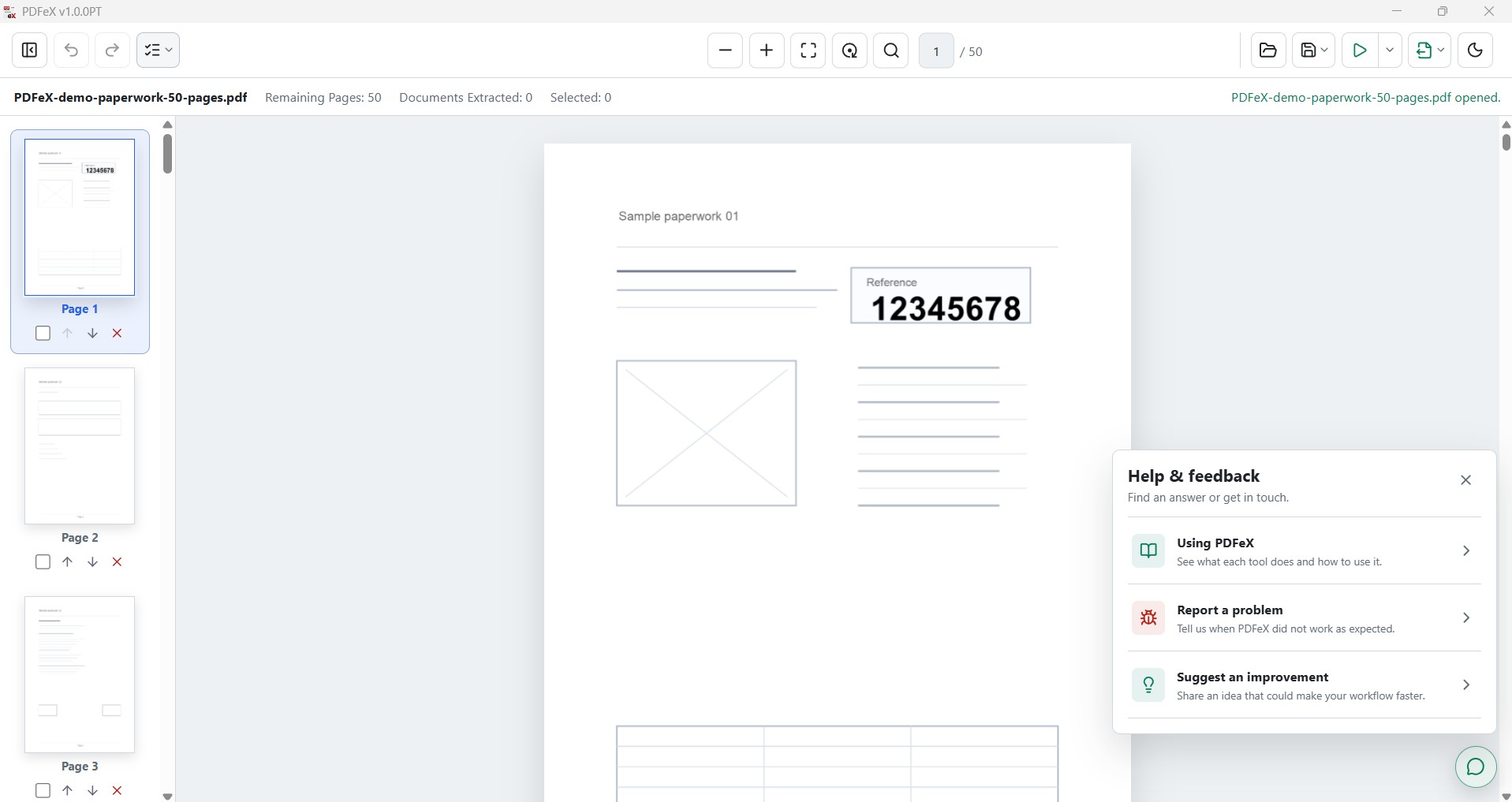
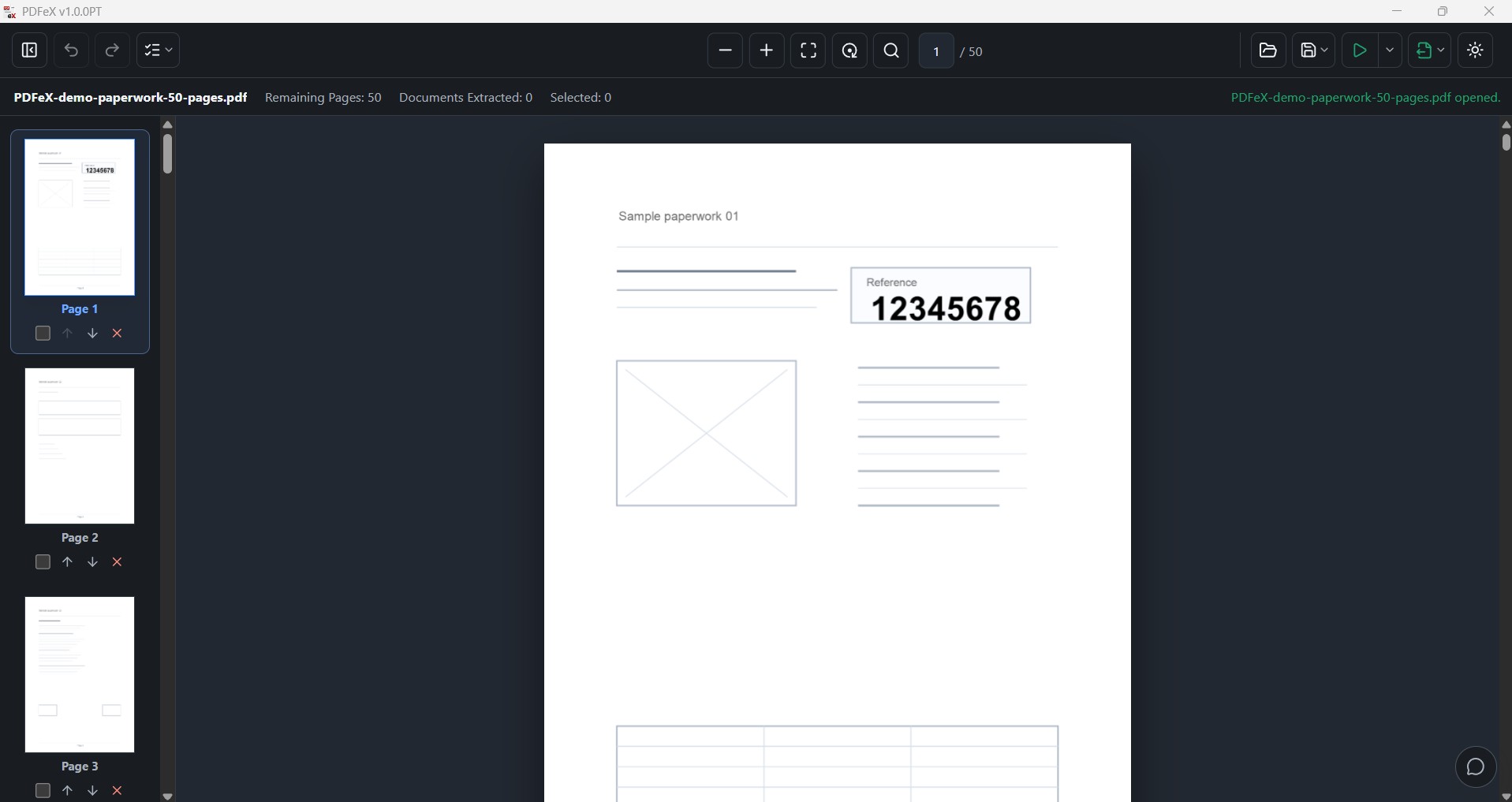
Select pages from the thumbnail rail, then reorder, remove or extract them without leaving the document.
Work with the pages where you can see them.
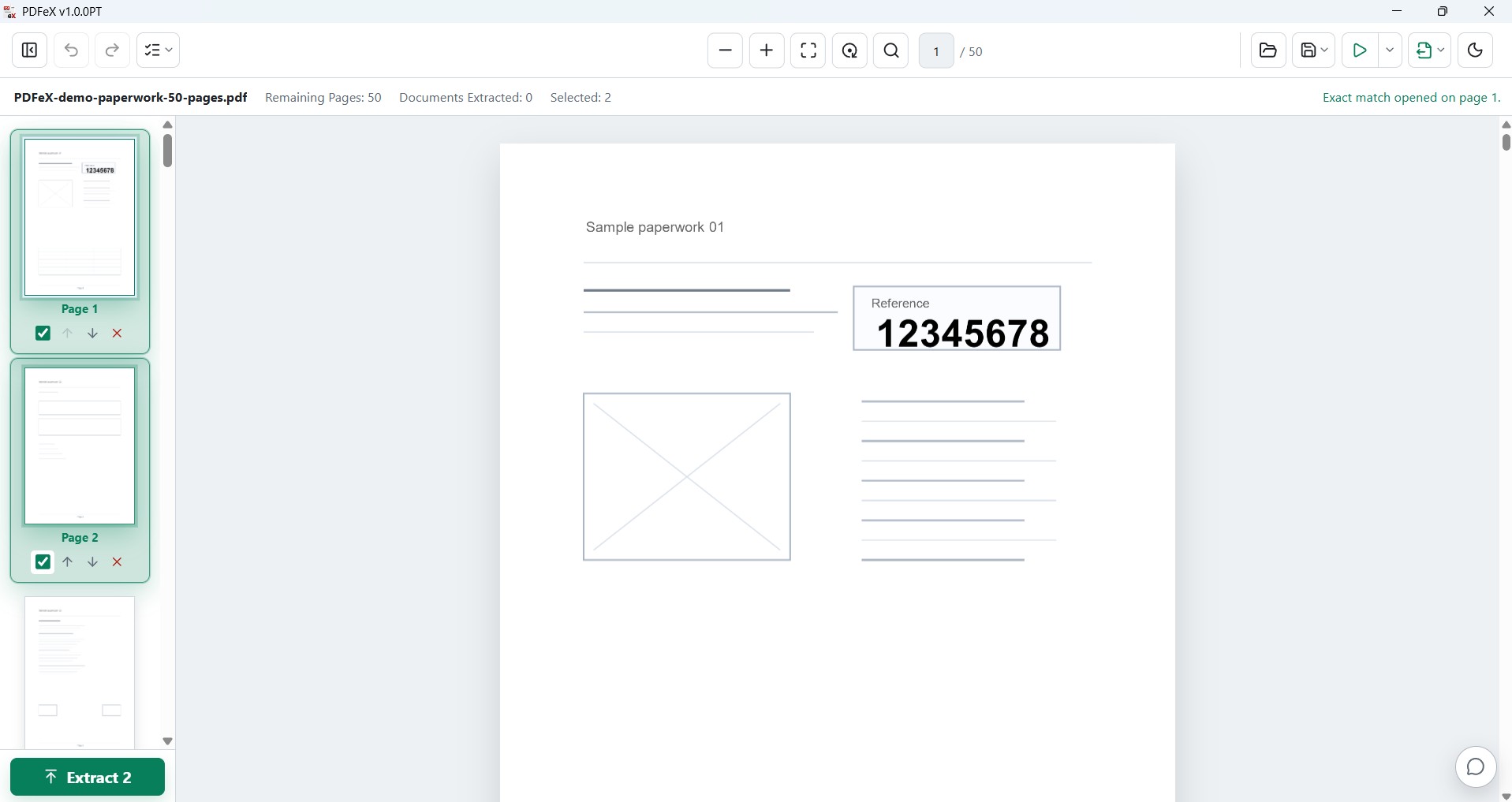
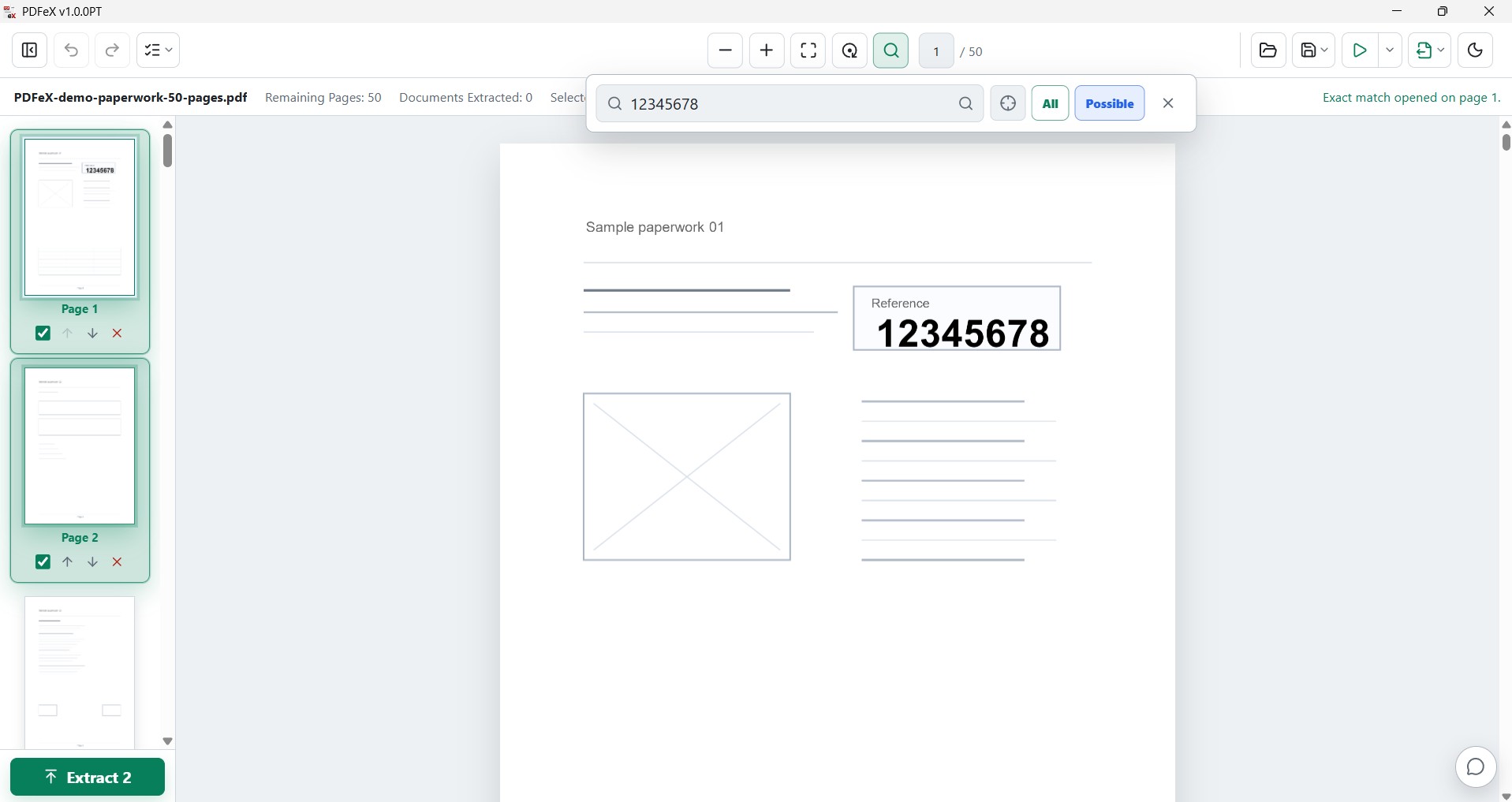
Find text or numbers without hunting through the batch.
Search the full page or draw a custom area, jump straight to matches, and extract every result into a new PDF.
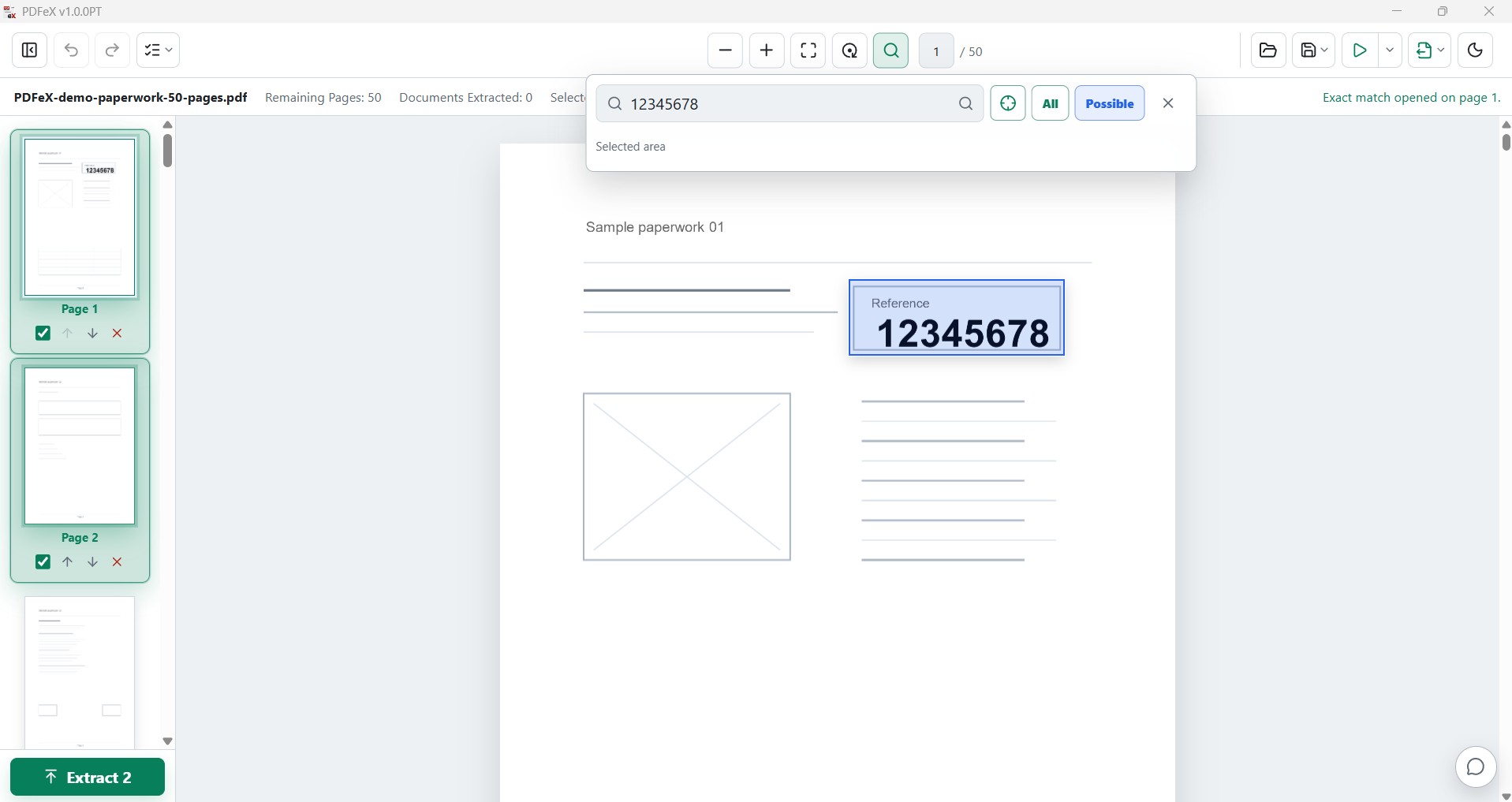
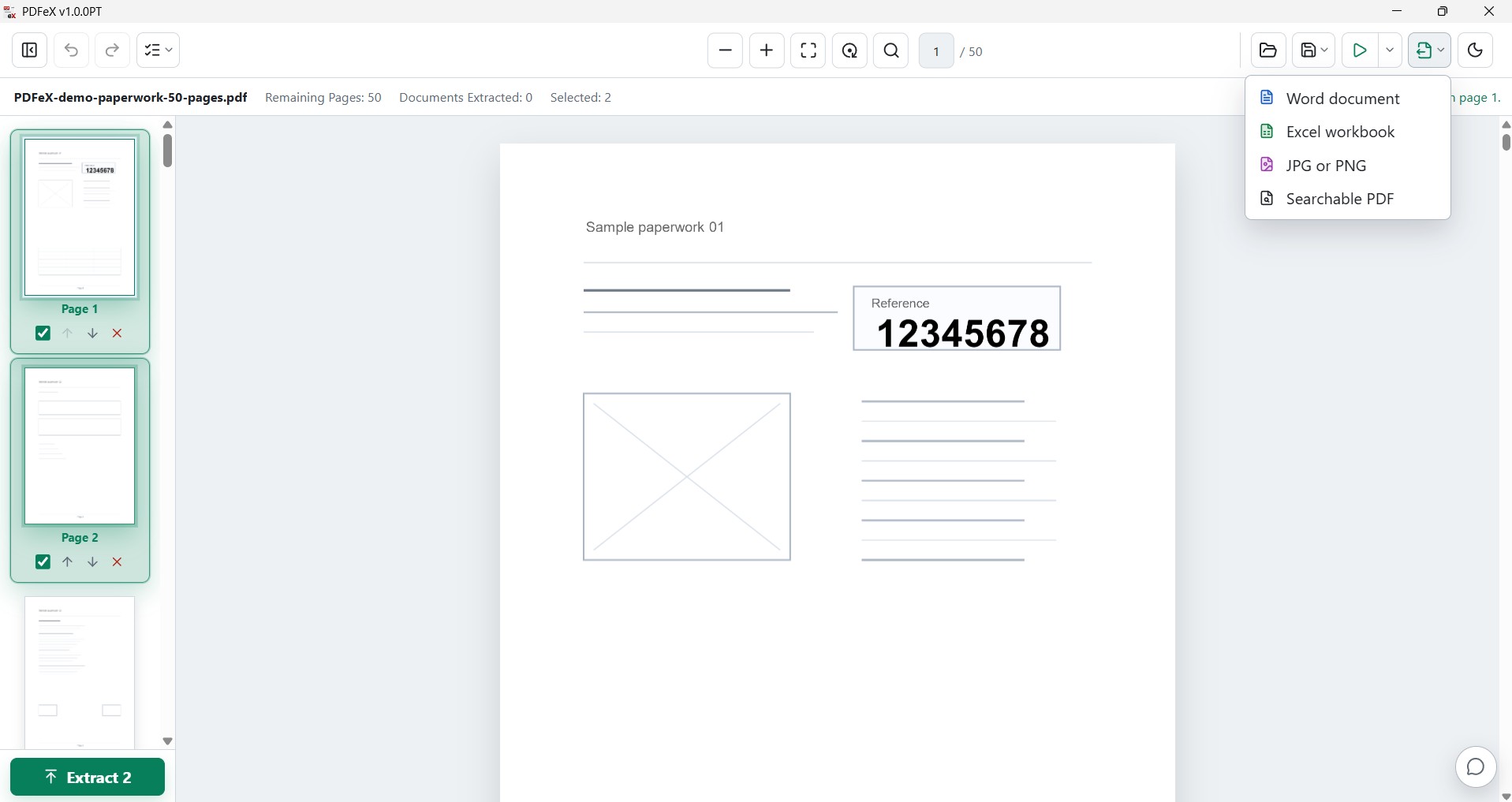
Turn the PDF into the next step of the job.
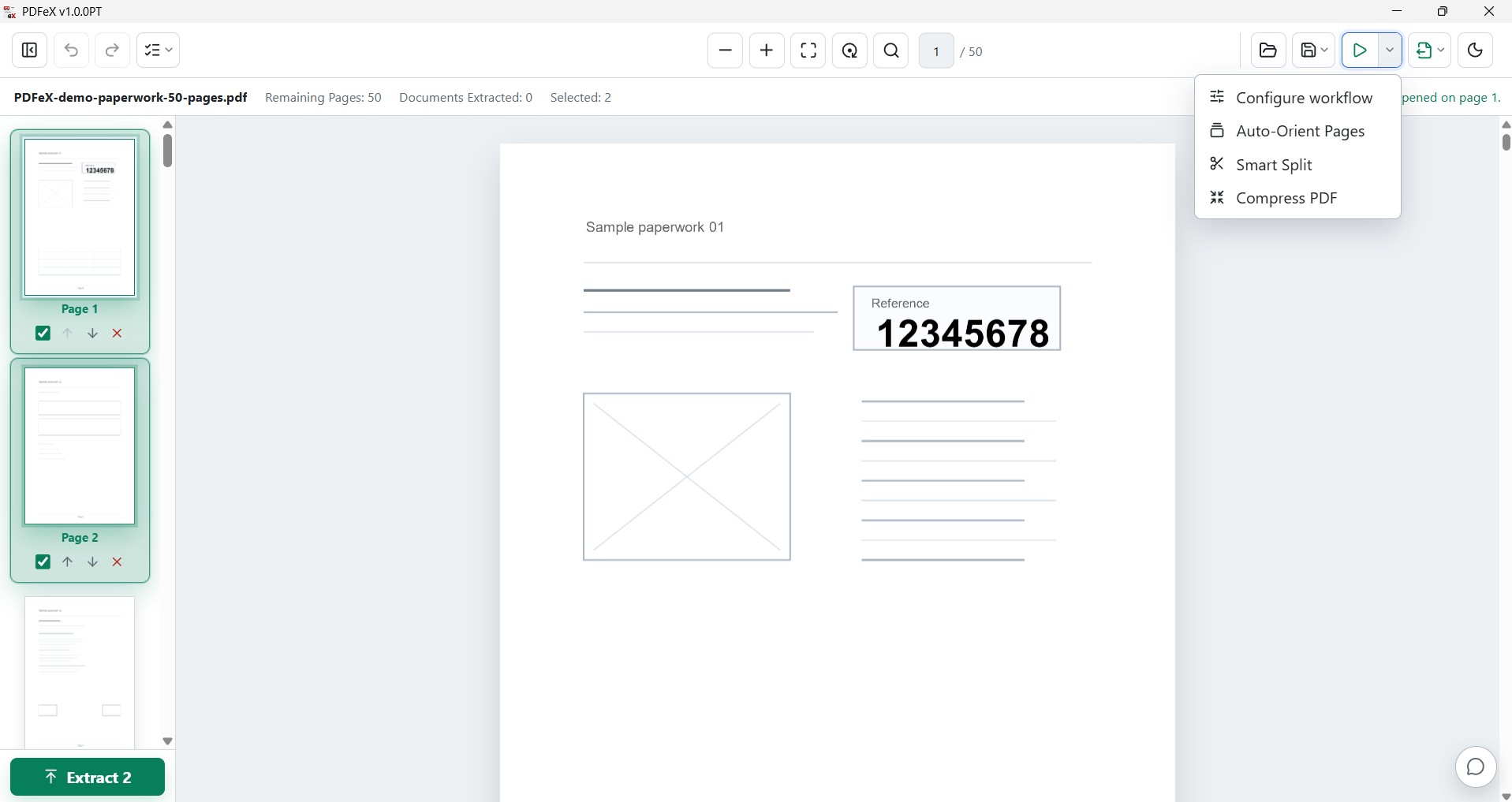
Convert to Word, Excel, JPG, PNG or a searchable PDF. Auto-orient, Smart Split and compress complete batches from the same toolbar.
Repeatable processing
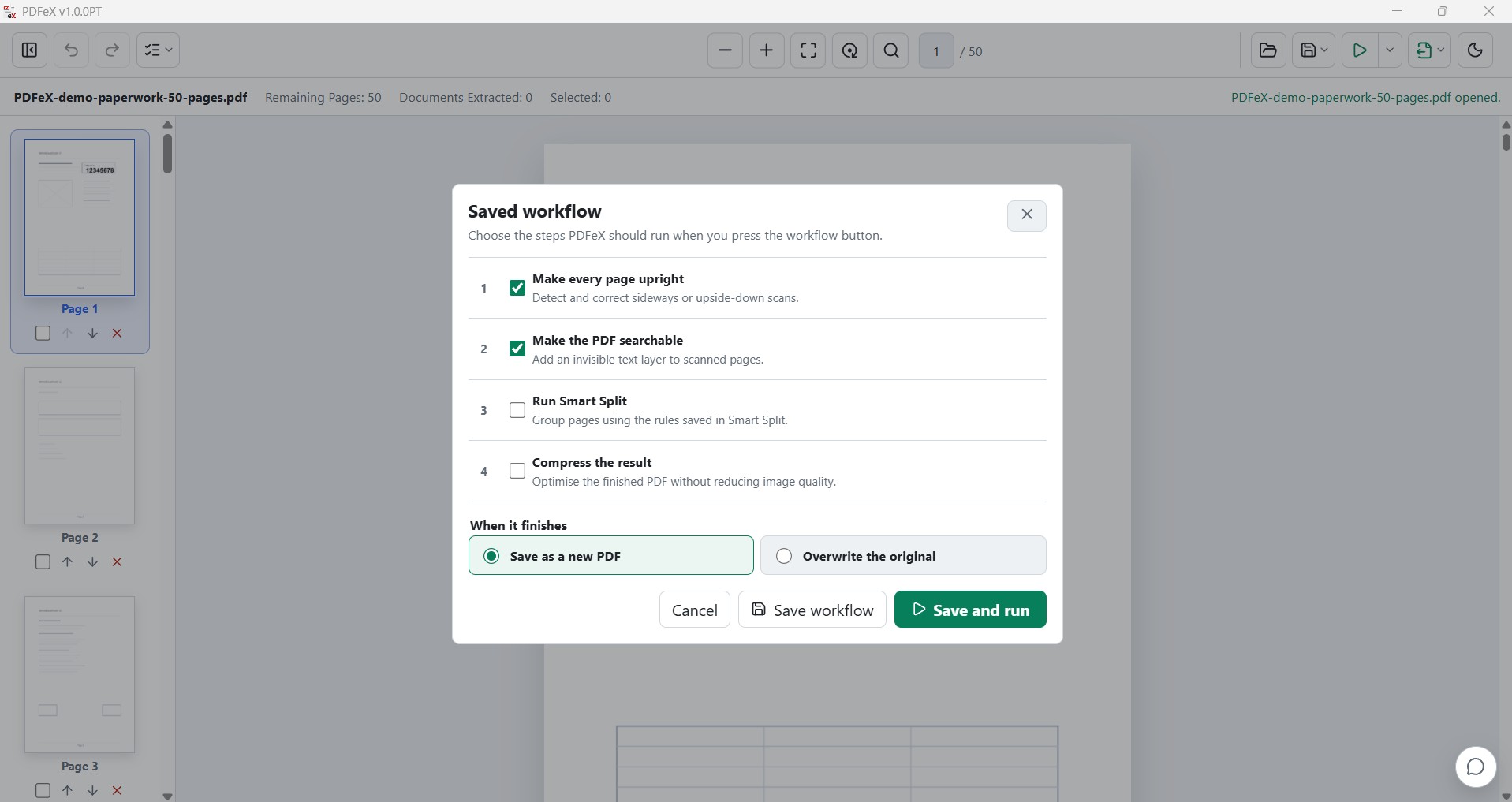
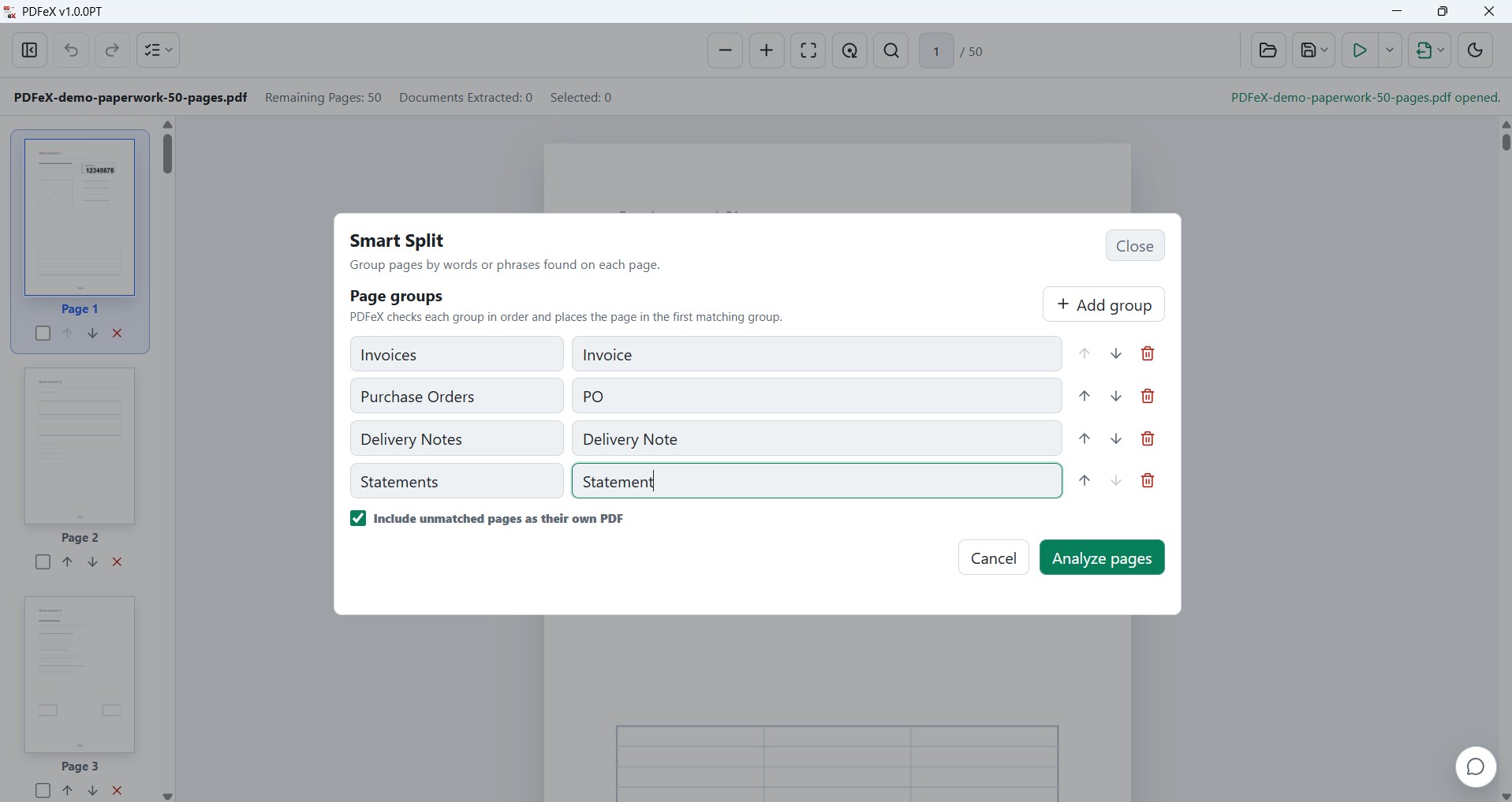
Configure the routine once. Run it when the next batch lands.
Combine OCR, page orientation, Smart Split and compression into a saved workflow, while keeping every run under your control.
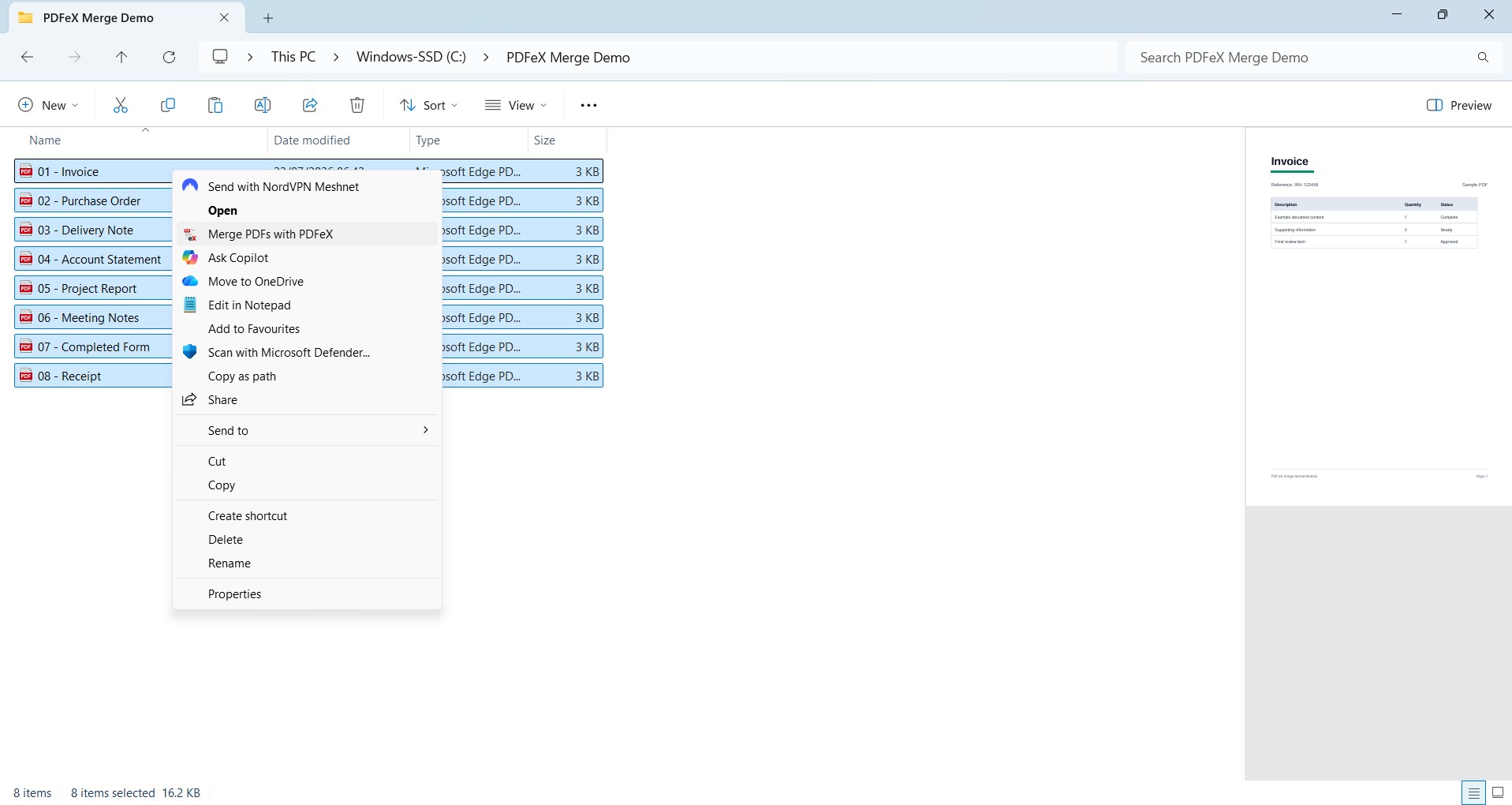
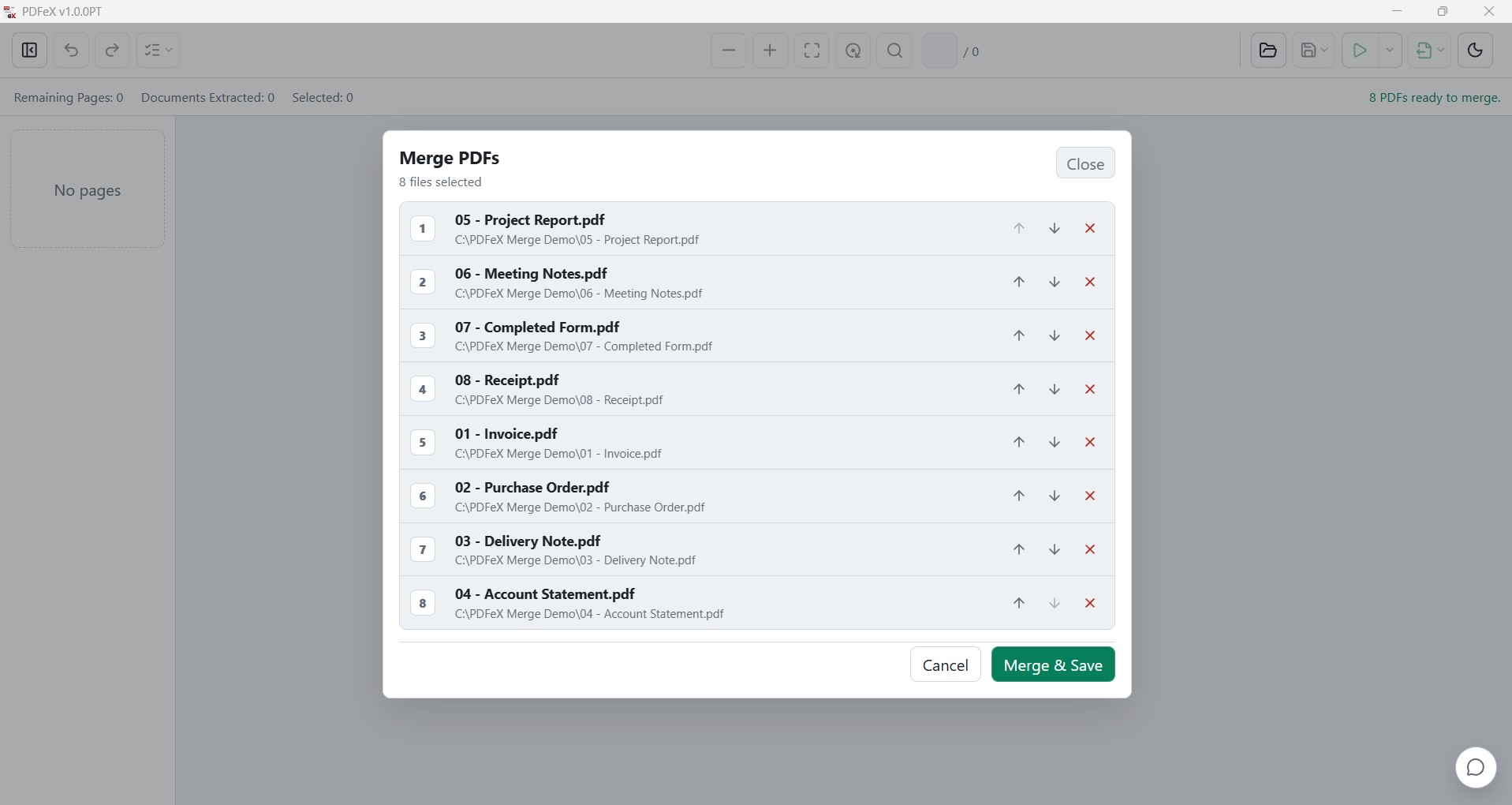
Merge from File Explorer.
Select multiple PDFs, right-click, review the order, and save them as one document.
Everyday details
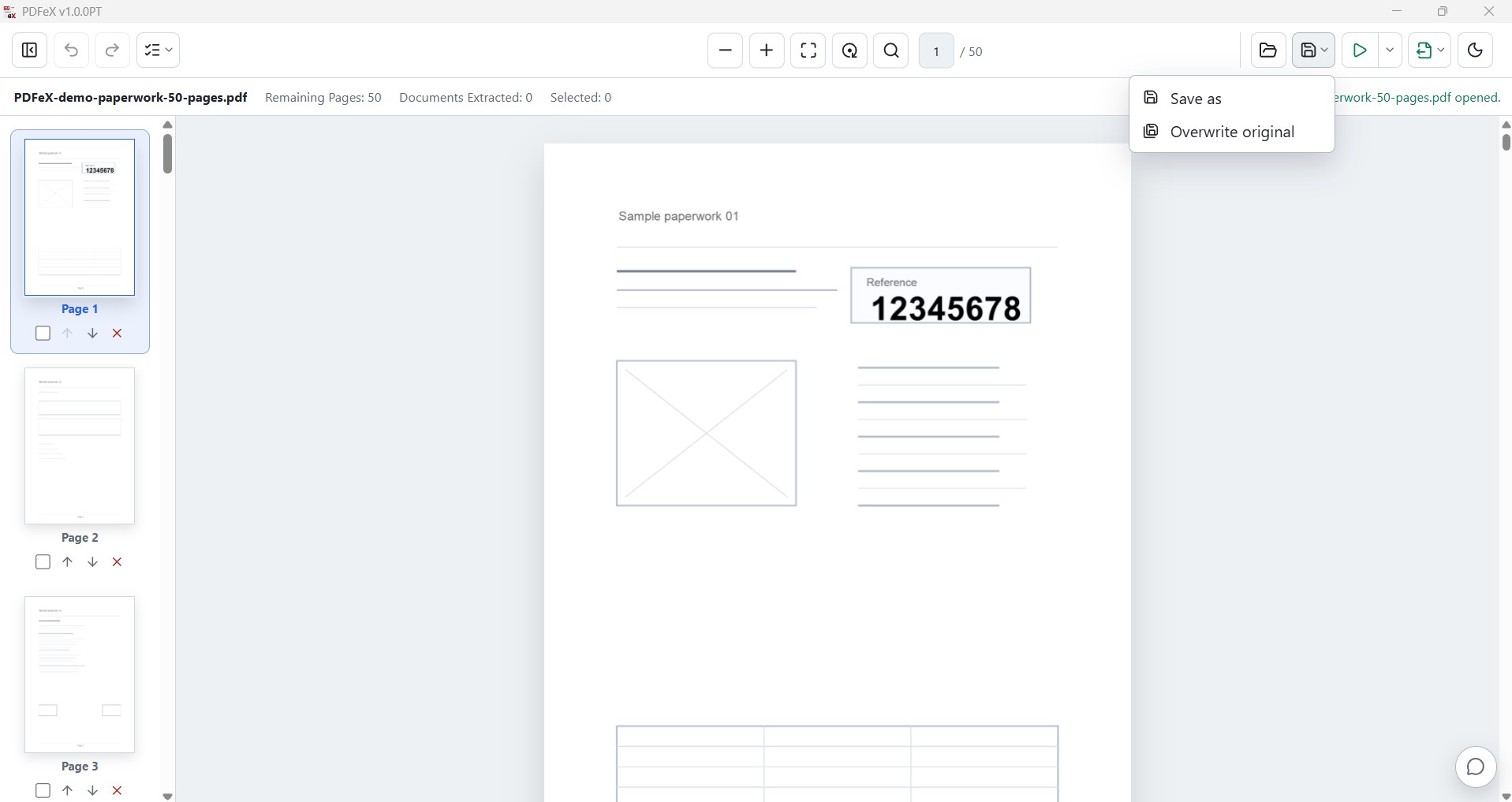
Clear choices when you need them. Quiet when you do not.
Why PDFeX
Built for scanned paperwork. Useful for every PDF.
PDFeX keeps common document work in one focused Windows app, so each batch takes fewer searches, uploads and handoffs to finish.
What it saves you from
- Random PDF websites No searching for a PDF extractor or merger whenever a batch lands.
- Unwanted uploads Keep scanned paperwork local instead of sending files through unknown tools.
- Endless page hunting Find the content you need without scrolling through hundreds or thousands of scans.
- Upload/download loops Skip the cycle of upload, wait, download, rename, and repeat.
- Tool switching Find, organise, convert, process and merge from the same workspace.
- Repeated setup Save a processing workflow and run it again when the next batch arrives.
- Messy handoff files Extract only the pages that matter into a clean PDF ready to send on.